Rodin add-on for 3ds Max
Install Rodin Bridge and use Rodin generation controls in 3ds Max.
Introduction
The Rodin add-on for 3ds Max brings image-based Rodin generation into 3ds Max. You can configure a generation, use a selected scene object with ControlNet, and import completed assets through a workflow connected to the Rodin web interface.
Overview
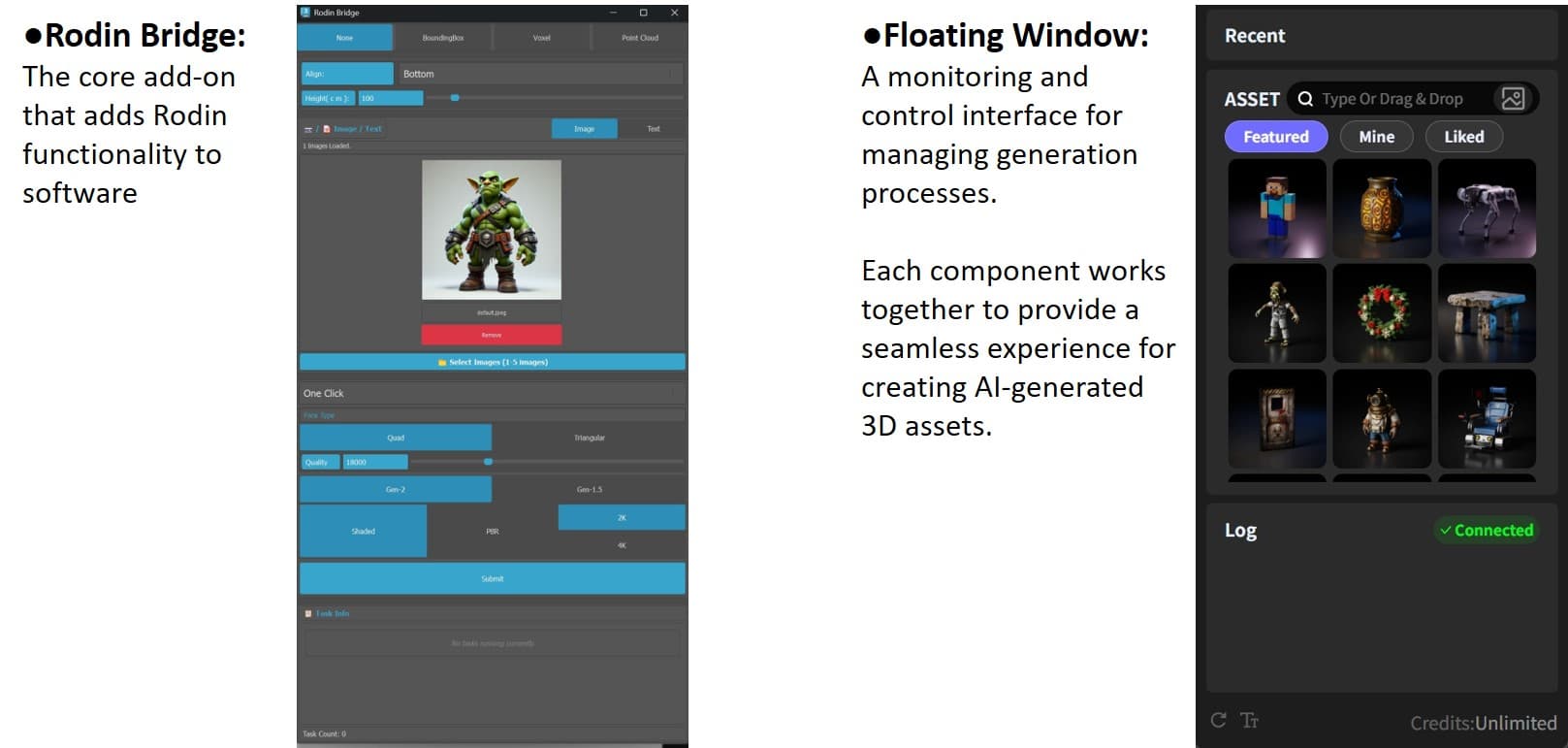
The Rodin Bridge panel connects your 3ds Max workflow to Rodin generation controls.
Installation
Verified versions
Only 3ds Max 2021 through 2025 have been verified. Other versions are not claimed as compatible.
Installation steps
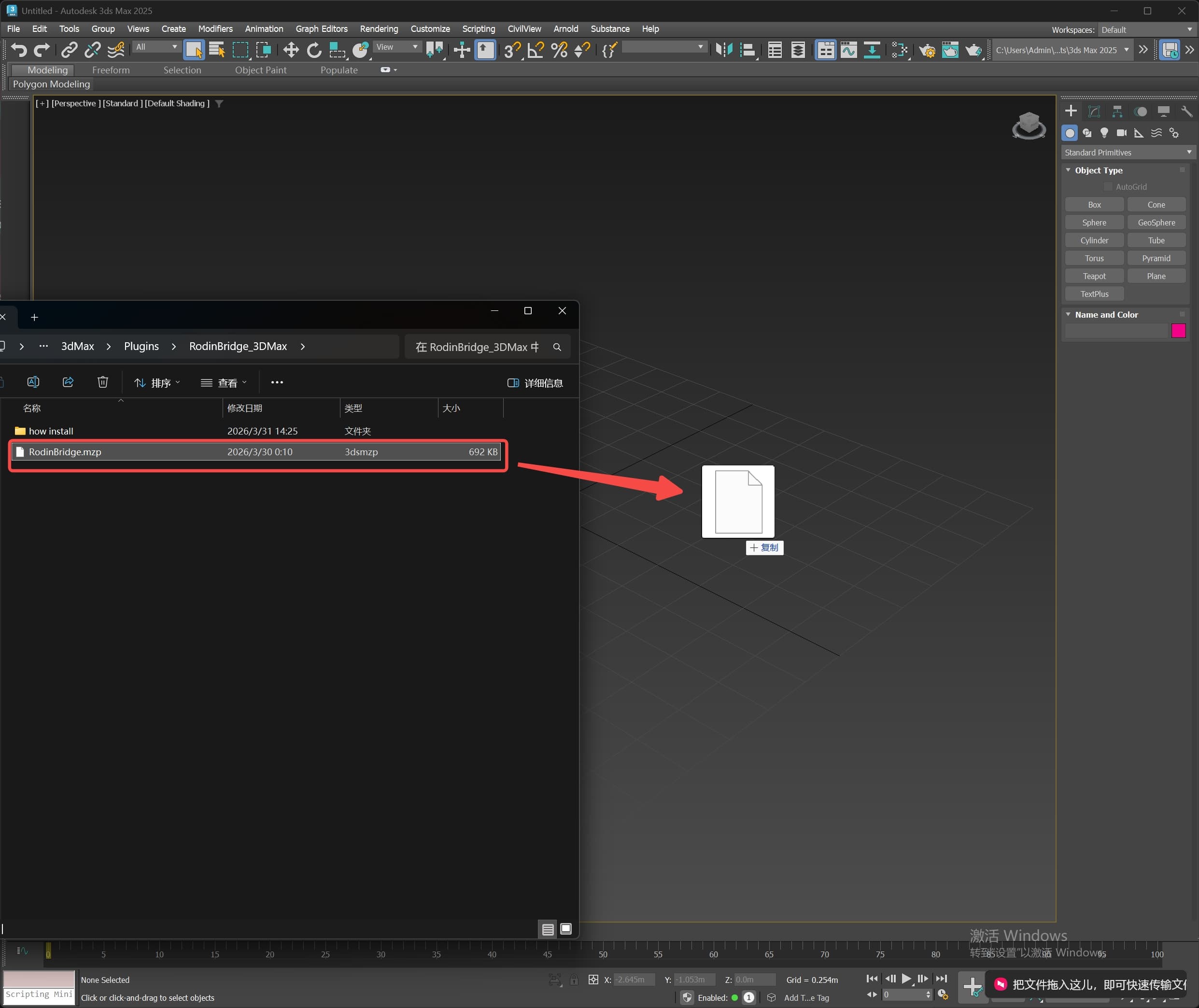
- Open 3ds Max.
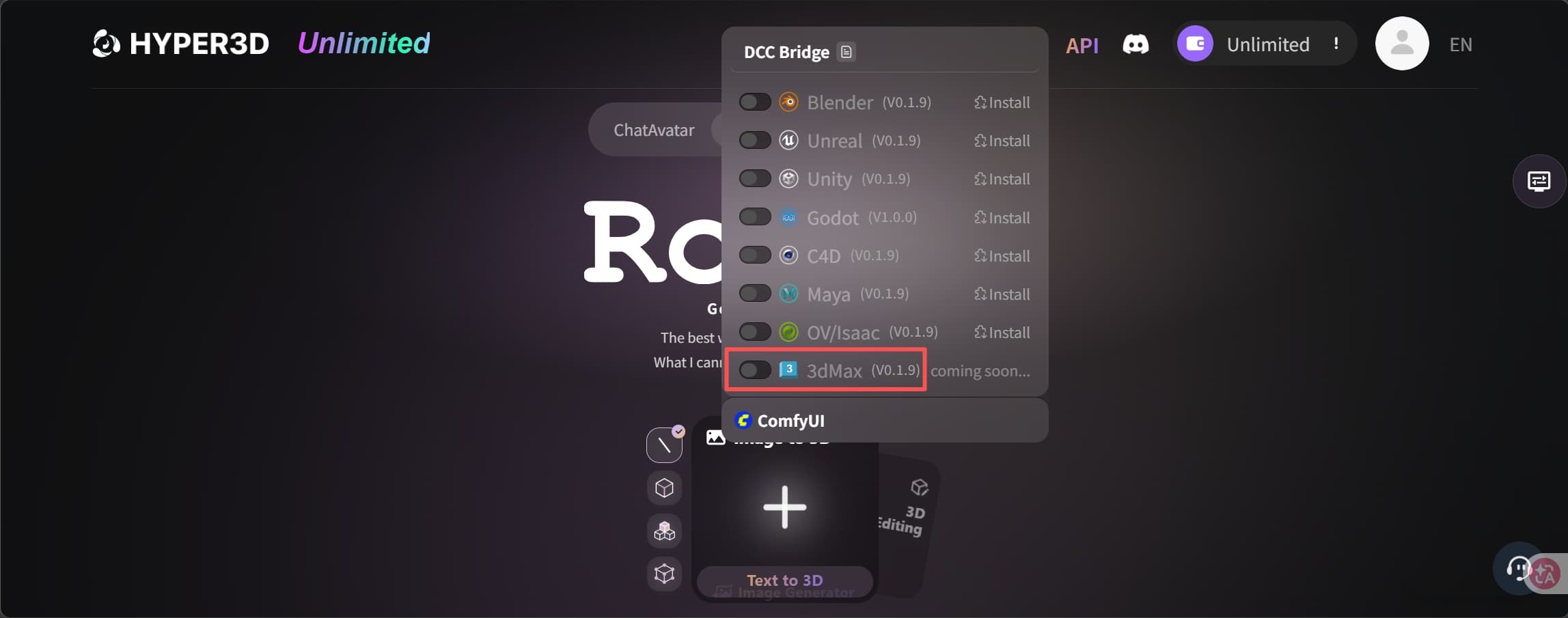
- Drag
RodinBridge.mzpinto the 3ds Max viewport. - Wait for the installation confirmation. The Rodin Bridge panel then appears and is ready to use.
If installation fails, restart 3ds Max and drag RodinBridge.mzp into the viewport again.
Basic usage
Some steps take place in 3ds Max and others continue in the Rodin web interface.
Single-image generation
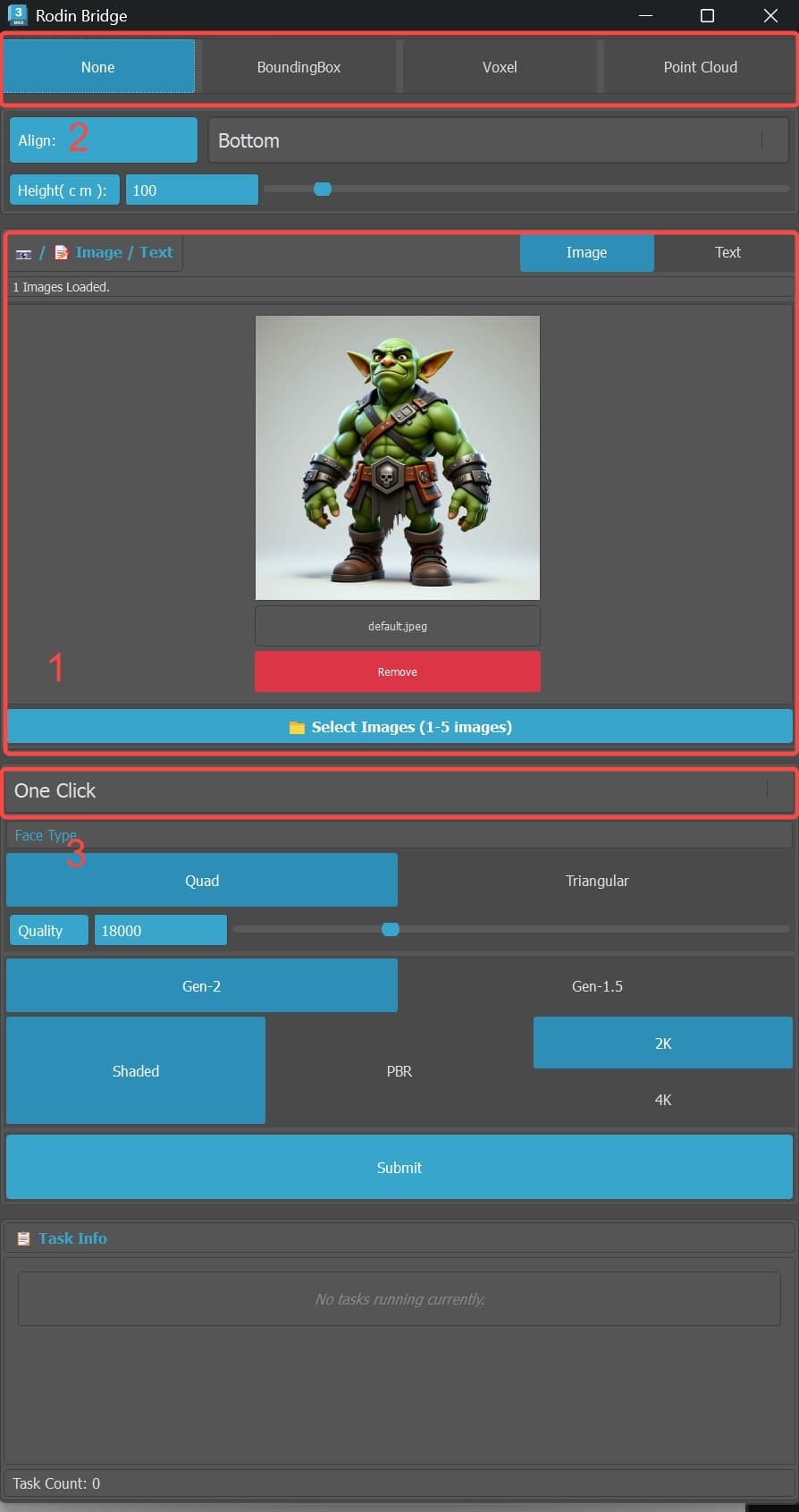
- Use Remove and Load Image to replace the default image.
- Set ControlNet to None and select One Click for an automated workflow. Adjust the remaining generation settings as needed.
- Select Submit to start generation.
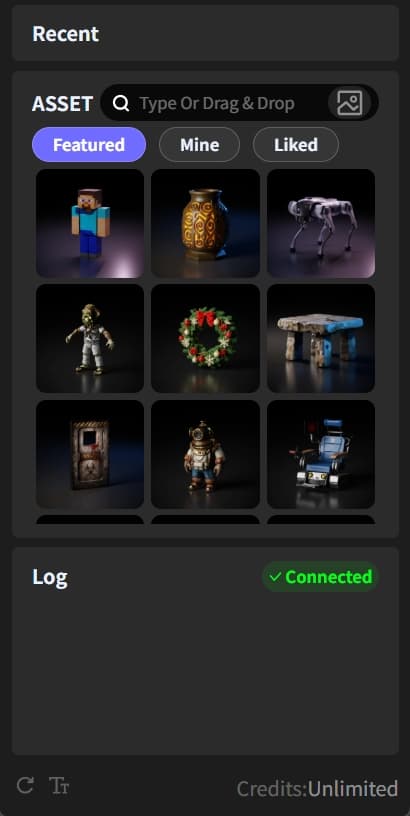
The Rodin web interface opens automatically if it is not already open. Enable its floating window to monitor progress. When generation finishes, the asset is imported into the 3ds Max scene.
To import a featured or previously generated asset, hover over it in Rodin and select Export.
Advanced functions
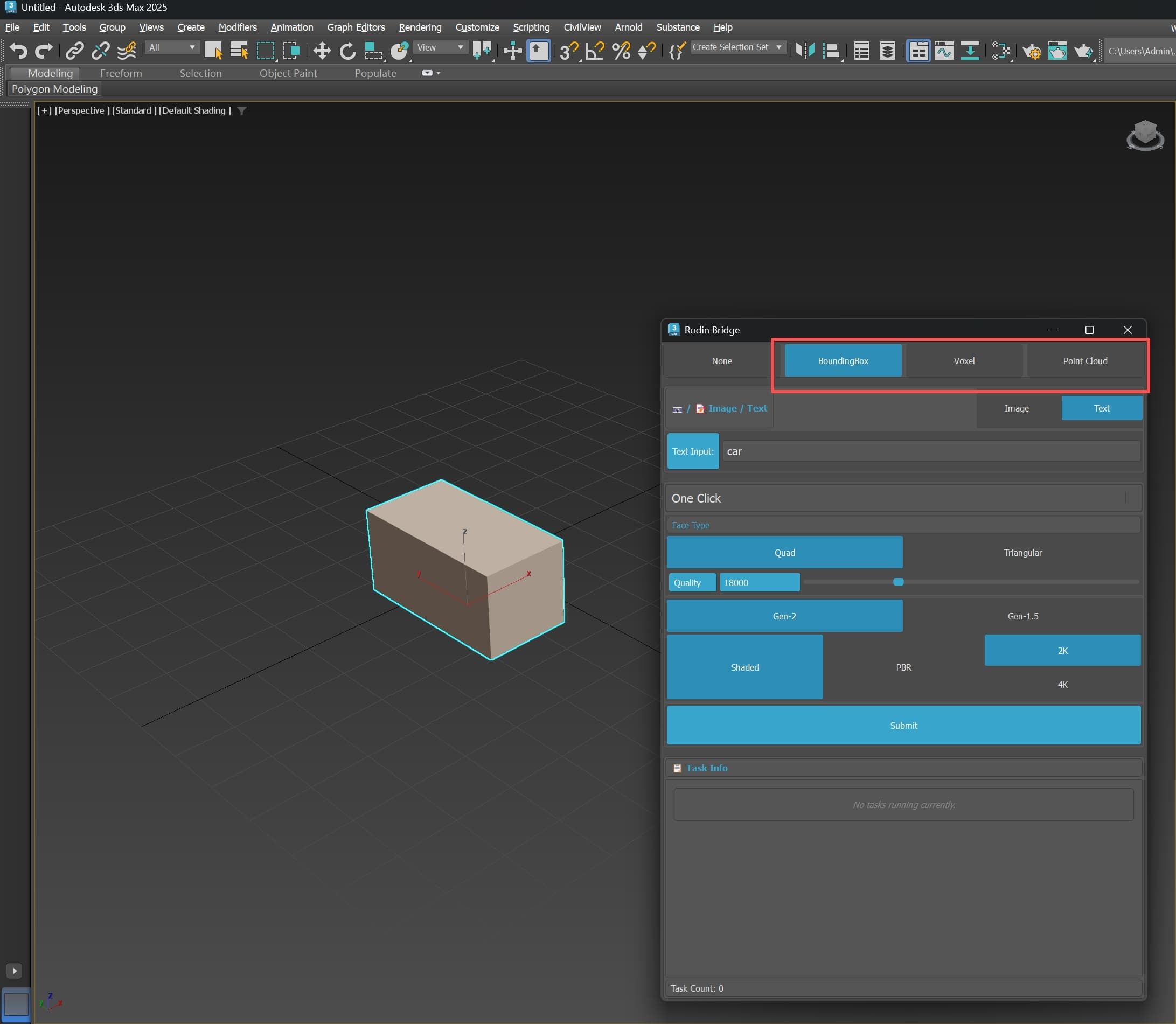
ControlNet
Select an object in the scene, choose a ControlNet mode, and adjust the available settings. The settings correspond to those in the Rodin web interface.
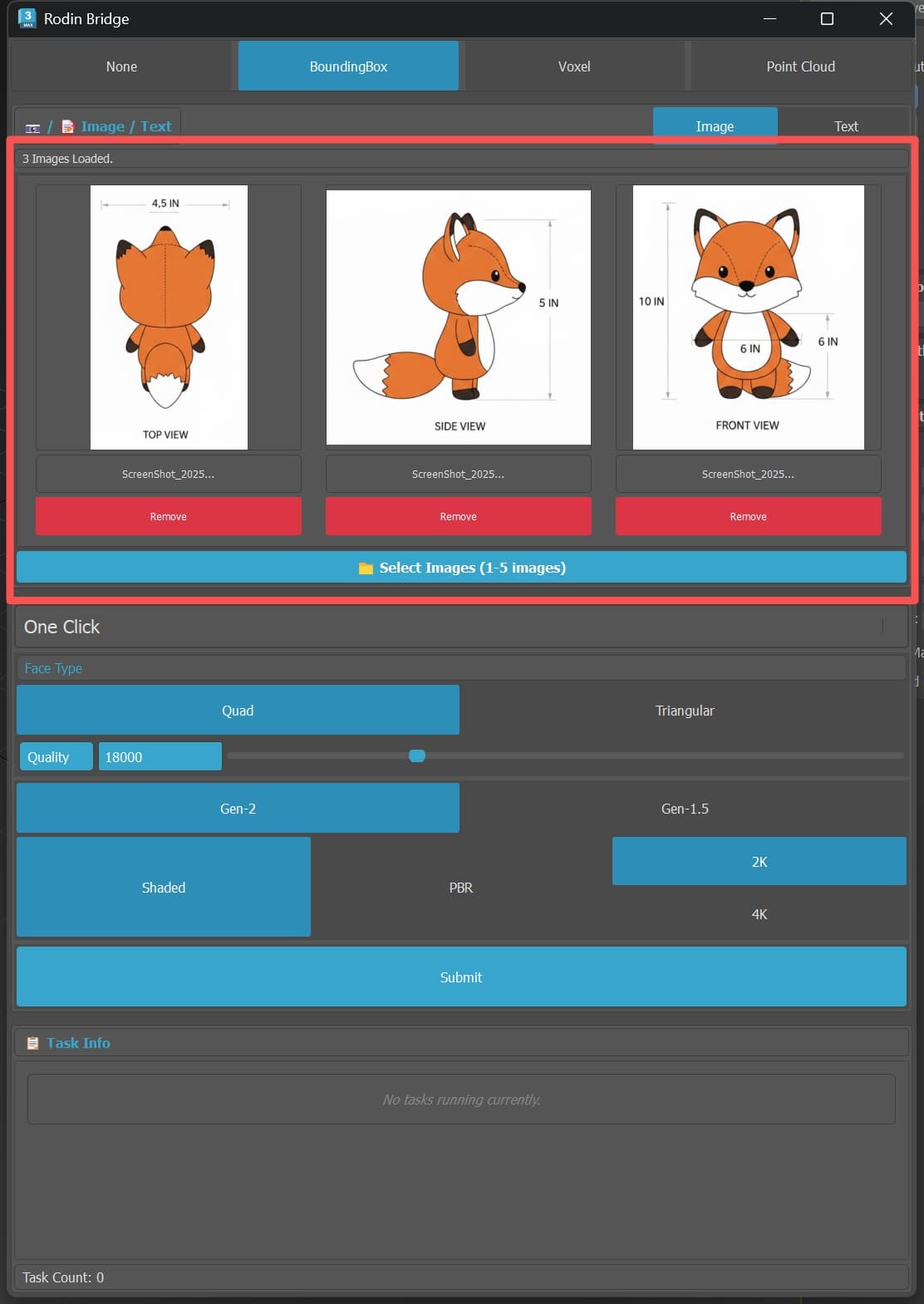
Multi-view mode
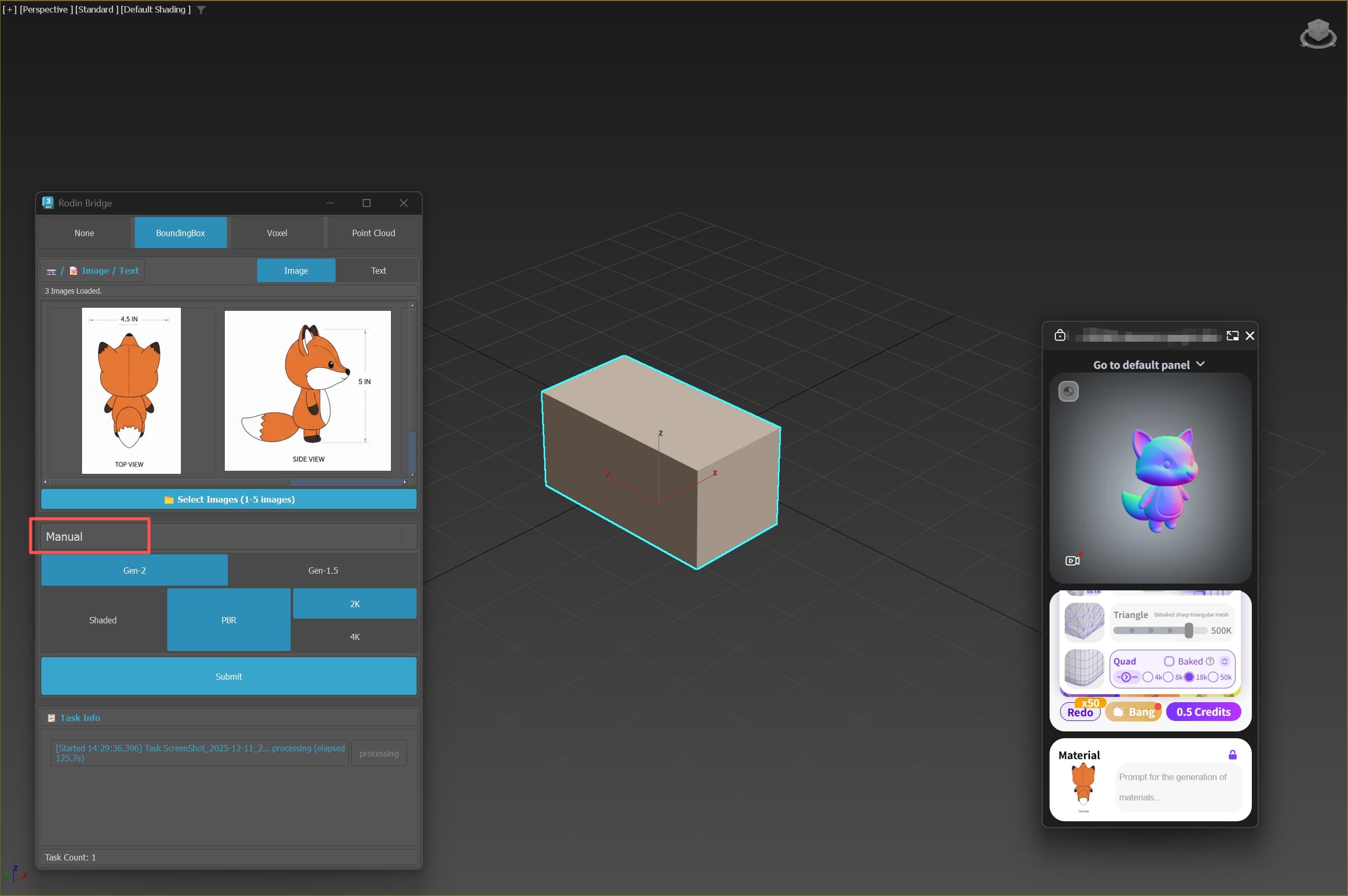
Use Load Image to add multiple input images. Rodin treats them as views of the same object for multi-view generation.
Generation mode
One Click runs the generation flow automatically. Manual requires you to complete each stage in the floating window, following the same flow as the Rodin web interface.